How Can We Help?
The formatting is not right or content is missing?
Please try converting both with the internal conversion engine and using Word to convert. This option is in the Template Overview settings:

What conversion engine should I use?
There are two conversion engines to choose from. Our built in Doc Converter Engine should cover 99% of your needs but we also offer you the option to convert with Word. The Word option is useful if you have problems converting specific content but always try the Doc Converter engine first.
So which one should I use? Our advice is to try the Doc Converter Pro engine first (it should cover most needs), then MS Word. The table below covers the key areas of difference. The table only shows areas of difference. Features that work across all conversion engines like XHTML support are not listed to keep things simple. Assume anything not listed below will work across all engines.
|
Conversion Engines – Quick Comparison |
|
|
|
Feature |
Doc Converter Pro |
MS Word |
|
UL/OL formatted lists |
yes |
simple lists only |
|
MS Word needs to be installed |
no |
yes |
|
Inline CSS |
yes |
no |
|
Header and Footer |
yes, user can control it |
no |
|
Image ATL and Description (title) |
yes, only alt |
yes, all + description |
|
Convert PDF to HTML |
no |
yes, Word 2013 or newer only |
I want to replace <b> with <strong>, or <i> with <em>
All you need to do is tick the option in the easy template editor main screen:

Can I convert Open Office .odt files?
You sure can. For best results use the Doc Converter conversion engine. If you have MS Word 2007 or above on your machine you should also be able to use the MS Word conversion engine.
How to disable auto renaming of files
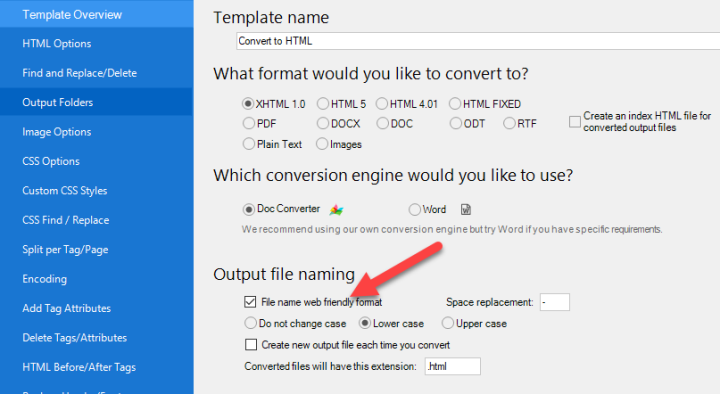
One of the cool features of Doc Converter Pro is the ability to automatically rename output files to make them web friendly.
For example, if your Word file is called Contact Us.doc Doc Converter Pro will rename the converted file to contact-us.html
To make them web friendly we change spaces to dashes and convert uppercase letters to lowercase. We also give you control over what character you want to use to replace spaces. You can also select if you want the case changed to lowercase or uppercase.
If you do not want this feature you can disable it in the template settings screen:
Still have a question? Please email: info@documentconverter.pro